
BoodleBox offers two convenient options for onboarding your class, allowing you to choose the method that best suits your needs and preferences. Both options create a collaborative learning environment for your students.
Sharing BoodleBox with your class is easy. Follow these steps to ensure all students have access to course folders in BoodleBox.
Anyone with access to the link will be able to join the shared folder. All chats created in or moved into the shared folder will be visible to everyone. Any chat created outside the shared folder is only visible to the chat owner.
If you have purchased BoodleBox for your class, or have set up a team instance of BoodleBox via our pilot program, follow the below instructions to complete the setup of your team.
Once your team members receive the email invite, they will need to follow a few steps to successfully join your team. They can follow along with a step-by-step walkthrough here.
Please inform them that if they ever see a blue bar above their chat bar [shown below] after joining your team, they will need to switch back to your team.
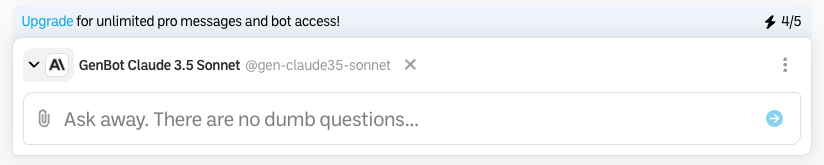
They may switch back to your team by using the team dropdown menu [shown below] at the top left of the BoodleBox interface to select your team.

Learn more about the ins and outs of the BoodleBox workspace from our team of experts.
Schedule a meetingLooking for more information?