Once you've created your account and logged in, familiarizing yourself with the BoodleBox interface will help you make the most of its features. Here's a guide to BoodleBox’s navigation menus.
A walkthrough of the 'chats' sidebar - from top to bottom.
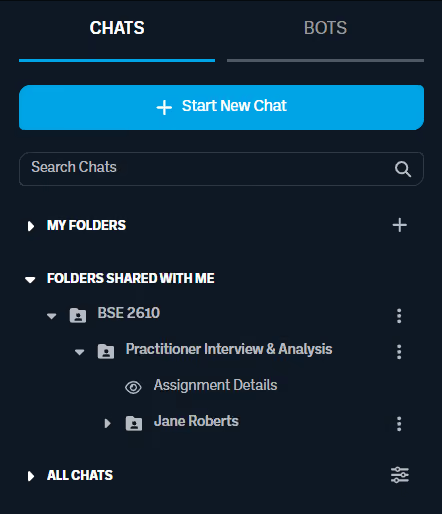
Start New Chat: Click at any time to start a new chat.
Chat Search Bar: Use to search chats by name.
My Folders: View all folders you’ve created, add new folders, and access folder menus.
Folders Shared With Me: After opening a shared folder link, it will appear here.
All Chats: View all chats and group chats.
A walkthrough of the 'bots' sidebar - from top to bottom.
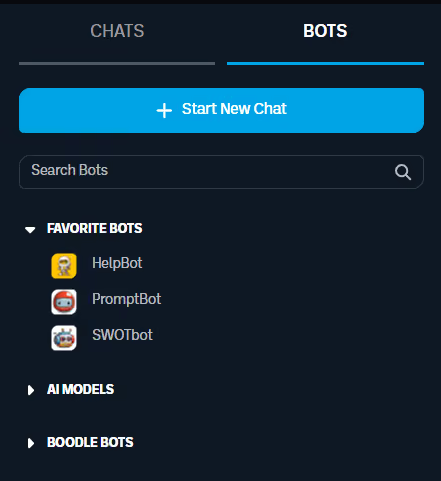
Start New Chat: Click at any time to start a new chat
Chat Search Bar: Use to search chats by name
Bot Categories: Browse through bot categories and hover over any bot to view its functionalities
A walkthrough of the chat window navigation - from left to right.


Chat Name: See the name of your open chat (or group chat).
Add Members (Private Chat View): Click to copy chat link and add members to the chat.
Member Overview (Group Chat View): Hover over avatar cluster to preview members in the chat. Click to view all members, manage members, and copy chat link.
Copy Link (Group Chat View): Click the link button to automatically copy chat link for sharing.
Attach Knowledge (Paperclip): Click to add knowledge to your knowledge bank.
Three Dot Menu: A selection of quick actions, including copy chat link, rename chat, add chat to knowledge bank, move chat to folder, and delete chat.
A walkthrough of the chat bar navigation - from left to right.

Bot Avatar & Selector: View the bot currently selected in your chat and click to open a popup menu to browse through bots.
Three Dot Menu: Use this menu to favorite (or unfavorite) bots, switch between Bot Mode and Message Mode, and use Enable Knowledge to Context Mode.
Enable Knowledge to Context Mode: Use this feature when the entire content of the document is necessary to generate an accurate response (e.g., complex analyses or identifying patterns across documents).
Attach Knowledge (Paperclip): Another way to attach knowledge to your chat.
Chat Bar: Prompt bots or send messages to your team.
Blue Arrow: Click to send a message.
A walkthrough of the main platform navigation - from left to right.

BoodleBox Logo: Click at any time to return to chat window.
Team Dropdown Menu: Switch between personal and team workspaces.
Get Started: Access a getting started checklist specific to your needs (teach, learn, work, or play).
Chats (Message Bubbles): Click at any time to return to chat window.
Knowledge Bank (Brain): Click to open personal knowledge bank and manage files (star, rename, delete).
Support (?): Select to access the support center.
Notifications (Bell): Click to view and manage notifications.
Avatar: Click to view settings such as user details, billing & plans, password & security, etc.
Learn more about the ins and outs of the BoodleBox workspace from our team of experts.
Schedule a meetingLooking for more information?