A BoodleBox rescue mission
Are you about to lose your bot?
Gems start converting to Skills November 17.
Custom GPTs retire December 11.
No need to leave your bot behind. Bring it to BoodleBox, where the expertise you built can run on every AI model, not just one.
About 15 minutes per bot. Free to start. No credit card required.
Our Rescue Mission
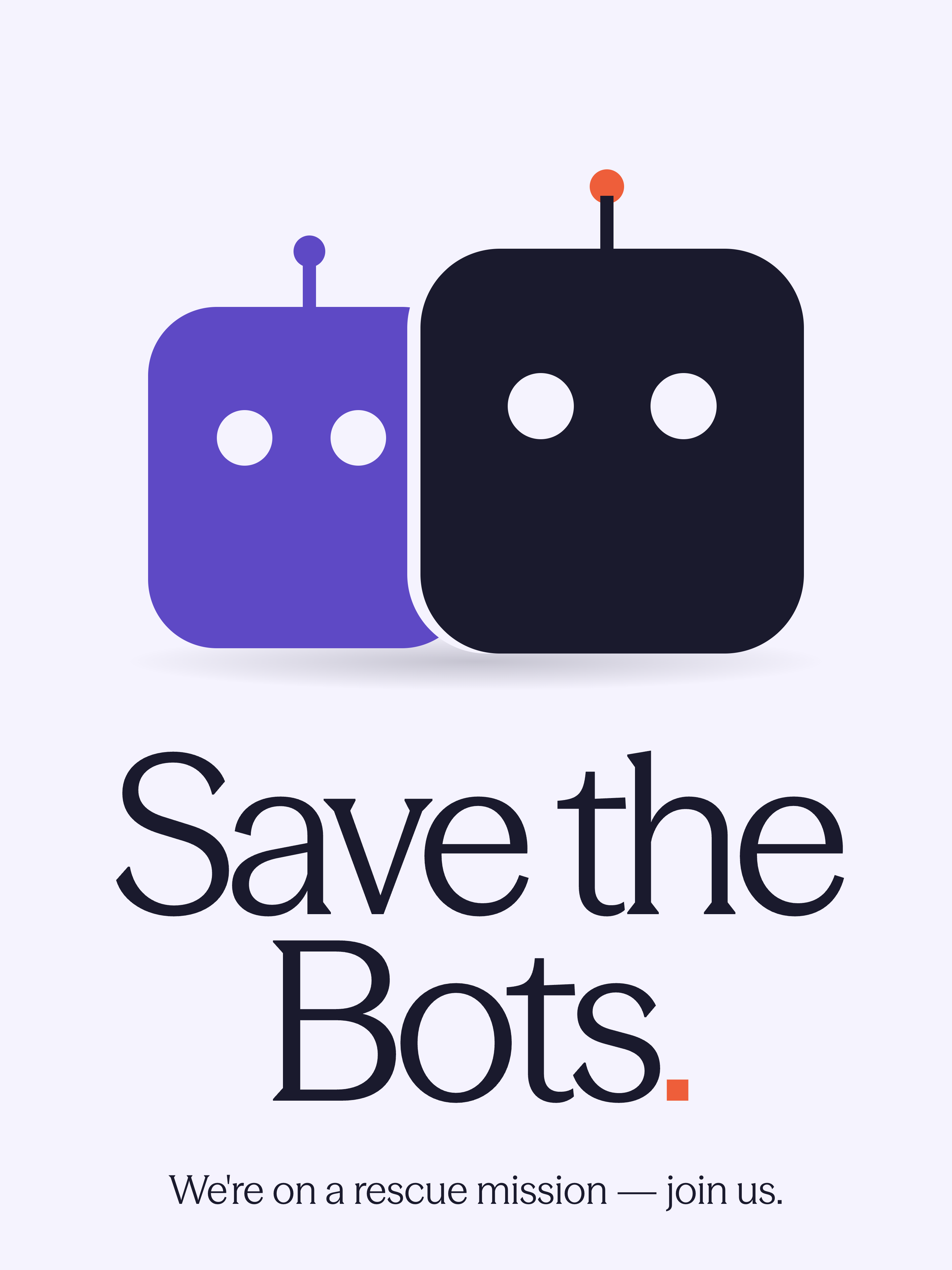
Every custom GPT and Gem holds hours of someone's thinking: a professor's rubric, an advisor's know-how, a firm's playbook. That work shouldn't expire on a vendor's timeline, and it shouldn't have to be rebuilt every time a platform changes its mind.
BOTS NEED A HOME
If you've built a custom GPT or a Gem, a deadline is coming. OpenAI is replacing GPTs with plugins and Google is converting Gems into Skills. Your work isn't deleted, but a converted bot isn't always the same bot.
Native habitat: ChatGPT. Being replaced by plugins.
Native habitat: Gemini. Being converted to Skills.
Two platforms, one lesson: bots built inside a single company's chatbot live on that company's schedule.
How it works
Save your bot in 3 steps. It takes about 15 minutes per bot.
Before you begin
You'll need a BoodleBox account. Log in if you have one or create one for free.
You'll need the account that created the GPT or Gem. Only the creator can see its instructions.
Export before you migrate. OpenAI makes a GPT read-only once you click "Migrate to plugin."
Actions and connected apps don't transfer. Note them down and ask your BoodleBox admin about alternatives.
Don't have a BoodleBox account? Sign up. It's free.
Rescue your bot, earn the badge. Finish the three steps, then report your rescue →
Which kind of bot are you rescuing?
Start a new bot. In BoodleBox, click Bots in the left sidebar, then Build Bot, and give it the same name as your GPT or Gem.
Let Vibe Bot Builder set it up. In the Vibe Build tab, click the paperclip and upload your handover.md and all your knowledge files together. When they finish processing, send this message. It runs on any leading model, or let BoodleBot pick the right one for each prompt.
Check its work. Vibe Bot Builder replies with a summary of what it set up. Open the Configure tab and make sure the instructions match the ones you copied word for word and every knowledge file is listed.
Test it. Click Test Bot and ask the three test questions from your handover. Compare each answer with the expected one.
Publish and share it. Click Publish, then share it with a class, a team, or a GroupChat.
Report your rescue. Tell us which bot you saved and download your Safe Bot badge.
Share your rescue! Share your badge and this page with a colleague, a department, or your campus. Custom GPTs retire December 11, and every bot saved is someone's best thinking, kept.
BoodleBox puts every major model behind one roof. When a vendor changes course, your bots don't have to move again.
150+
colleges and universities
130
companies
120K+
educators, students, & professionals
Want to bring BoodleBox to your team, org, or school?
Book a demoEvery model, one habitat
GPT, Claude, Gemini and more in a single interface. No single-vendor bet.
Protected by design
FERPA- and SOC 2-compliant, built for campuses and the organizations they serve.
Bots that build AI skills
Coach Mode flags over-reliance and weak fact-checking, so your bot helps people think, not just copy.
Bots in good company
GroupChats put people and multiple bots in one thread, together.
You won't get a migration notice from us. If a better way to package expertise comes along, it will arrive beside your bots, not in place of them.
A skill is something an AI can do. A bot is a named thing a group can share.
Read why we're keeping custom bots →
Bot Rescuer Recognition
Report your rescue and download your Safe Bot badge to share. Every bot saved is someone's best thinking, kept.
Takes about a minute. Opens in a new tab.
| Part of your bot | How it gets to BoodleBox |
|---|---|
| Instructions | Copy them straight from the GPT or Gem editor and paste them into the handover. Don't rely on the bot to repeat its own instructions. Bots often shorten them or refuse. |
| Knowledge files | Upload your original files to BoodleBox. Gemini lets you download each file from the Gem editor. ChatGPT doesn't allow downloads, so use the copies saved on your computer or drive. |
| Purpose, tone, rules, starters | The bot writes these into the handover document for you. |
| Test questions | The handover includes three questions with correct answers so you can check the new bot. |
| Actions and connected apps | These don't transfer. Note them down and ask your BoodleBox admin about alternatives. |
Yes. If you use OpenAI's "Migrate to plugin" button, OpenAI makes the GPT read-only once it has been migrated. Finish the export first.
BoodleBox is free to start. No credit card required.
Some workspaces have later dates, so check with your admin. Dates reflect public announcements as of October 2026 and may change.
A skill is something an AI can do. A bot is a named thing a group can share. On BoodleBox, a bot isn't tied to the model it was built on. The same instructions and knowledge run on GPT, Claude, Gemini, and whatever ships next.
They don't transfer, and at OpenAI many will need to be rebuilt as MCP servers. Note them down before you export, and ask your BoodleBox admin about alternatives.
"I'm having a hard time fulfilling your request." Your bot may be refusing to repeat its own instructions. Use the handover prompt exactly as written. It doesn't ask for them.
Gemini is still loading after a minute. Stop the response, switch the model menu from Pro to Flash, and send the prompt again in a new chat.
The reply is empty or there's no file. Make sure the prompt asks for a code block, not a file. If you can't save a file, paste the handover text straight into the Vibe Build chat.
Vibe Bot Builder only lists steps. You're probably in a regular chat. Start from Bots, then Build Bot, so Vibe Bot Builder can edit the bot directly.
Answers don't match the test questions. Check that every knowledge file is listed under Configure, then Knowledge, and test again. Still stuck? Contact BoodleBox support through the Help Center.
ChatGPT and GPTs are trademarks of OpenAI. Gemini and Gems are trademarks of Google. BoodleBox is not affiliated with or endorsed by either company. Dates reflect public announcements as of October 2026 and may change.